


Adobe Acrobat Reader: Edit PDF
4.5145.70K Reviews
App Specs
- Version
- Varies with Device
- Updated On
- License
- Free
- Downloads
- 500,000,000+
- Developer
- Adobe
- Categories
- Productivity
- Platform
- Android, iOS
Screenshots
 Analysis by AppCompare
Readability is the first thing I look for in a PDF app, because a document can be technically available and still be hard to use on a phone. Adobe Acrobat Reader: Edit PDF is built around opening and working with PDFs, rather than treating them as just another attachment. I find that especially useful when a file needs more than a quick glance: I can read it, mark a passage, fill in a form, or sign it without immediately switching to a computer.
Reading comfortably, then finding your way around
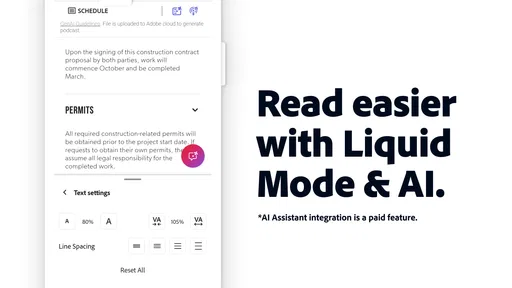
The familiar document view makes it easier to focus on the page itself. For dense paperwork, I recommend opening the file before you need it and checking how it is laid out on your screen. A PDF designed for a large page may require zooming and moving around, and that can make a long document feel slower to read than a reflowable ebook or a web page. Acrobat is most at home when preserving the original page layout matters; it is not necessarily the most comfortable choice for every kind of extended reading.
Navigation also depends on the document. A short form is straightforward, while a lengthy report can take more effort if you are repeatedly scrolling to locate a particular section. My practical habit is to use the document’s own headings and page structure where available, and to add a highlight or note as soon as I find something I will need later. That turns a passive reading session into a more useful review without relying on memory when I return to the file.
Different ways to interact with a PDF
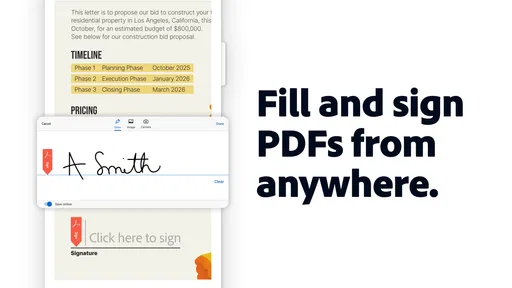
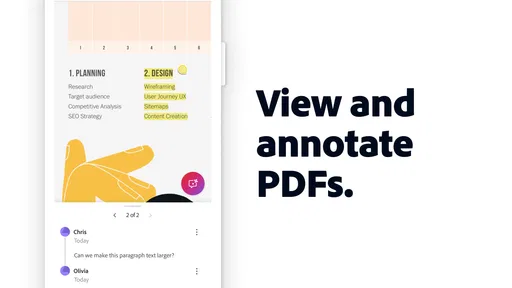
For people who prefer a stylus, tapping, or typing, the app supports several common ways to interact with a document: annotations, form entry, and signatures. I like being able to choose the method that suits the task rather than treating every PDF as read-only. A stylus can feel more natural for marking a passage, while typing is usually the clearer option for a form field that needs a precise answer.
That flexibility does not make every task equally effortless. Small controls and tightly packed form fields can be awkward on a compact screen, and signing with a finger may take a little patience if you want a neat result. I would zoom in before editing a crowded page, then review the finished document at normal size to catch misplaced marks. Anyone who relies on a particular input method should try a representative file first, especially if they regularly complete complex forms.
Access across places and devices
Adobe Acrobat Reader is a free productivity app from Adobe, with optional in-app purchases ranging from $1.99 to $299.99 per item. It is rated for Everyone, and its long history helps explain why so many people encounter it when sharing PDFs. The app has an average rating of 4.5 from around 7.5 million ratings and over 500 million installs, making it a familiar option for both occasional readers and people handling documents every day.
Cloud connections can make a practical difference when a file moves between home, work, and a phone. If you keep documents in Adobe Document Cloud, Google Drive, or Dropbox, being able to reach them from the app can save the extra step of searching through message attachments. For a smoother trip, I would open the file and confirm it is ready before leaving a reliable connection; that is a sensible habit for any cloud-based workflow, not a guarantee that every file will be available offline.
Worth Reading Before You Choose

Baby Panda World Brings Quick Play to Modern Phones, but Its Game Library Feels Busy

ESPN’s Live Game View Makes Following Close Games Easier

QuizzLand Review: A Good Fit for Short Trivia Breaks, Not Every Player

Basketball Stars: Multiplayer Is Fast, but Can It Recover When Matches Go Wrong?

WEBTOON Turns Phone Updates Into a Better Reading Routine

Link to Windows Runs on Shared Habits, Not Social Feeds
Where the experience still asks for patience
Acrobat has more going on than a lightweight viewer, and that breadth can feel like extra weight if all you want is to read one attachment. Some editing options may involve an in-app purchase, so I would check the specific tool you need before building a routine around it. If your usual task is simply opening occasional PDFs, your phone’s built-in viewer may be quicker and less involved. If you need to revise page content extensively, a desktop editor is generally a better setting than trying to do detailed work on a small touchscreen.
There is also a difference between making a PDF usable and changing how it was originally designed. A scanned or poorly structured file can remain difficult to navigate even inside a capable reader. When a document is hard to read, I first check whether zooming or rotating the page helps; if it is still uncomfortable, asking for a clearer or more accessible copy may be more effective than spending time adjusting the app. That distinction matters for anyone choosing a tool with accessibility in mind: the reader can support interaction, but it cannot automatically fix every barrier embedded in a document.
Who will get the most from it?
I would recommend Acrobat to students reviewing handouts, renters completing forms, and anyone who needs to sign or comment on a document away from a desk. A realistic example is receiving a permission form while commuting: I can open it, read the relevant sections, enter details, and sign on the phone rather than waiting to get home. For a team reviewing a draft, annotations are also more useful than sending a vague message about a page; a highlight or note can point directly to the passage in question.
For comparison, a basic built-in PDF viewer is often the simpler choice for reading a single file, while a cloud-storage app can be more convenient when the main job is browsing and organizing files. Acrobat earns its place when reading and document actions need to happen together. It is less compelling if you rarely edit PDFs, dislike navigating a feature-rich app, or need extensive layout changes. Adobe released the app on May 24, 2010, and it has grown into a familiar, broad-purpose tool, but a long-running product is not automatically the best fit for every workflow.
What Does Adobe Acrobat Reader Offer?
This app is not just your average PDF reader. Sure, it opens PDFs, but it also lets you edit them. That's right! With Adobe Acrobat Reader: Edit PDF, you can add comments, fill out forms, and even sign documents right on your phone. It’s become my go-to tool for all things PDF.
Easy Navigation and User Interface
The first thing I noticed was how easy it is to navigate. The user interface is pretty intuitive. You don’t have to be a tech wizard to find your way around. Everything you need is just a tap away. The design is clean, which makes it super easy to focus on your document without getting distracted by cluttered menus.
Editing Features and Tools
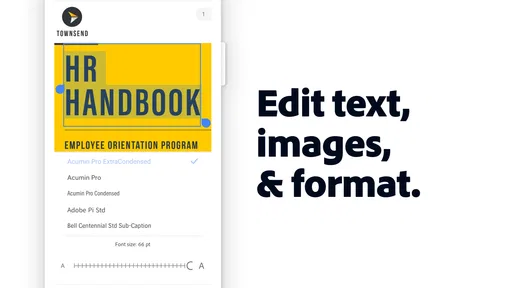
Now, let’s talk about the real magic—the editing features. If you’ve ever needed to fill out a form or highlight text, this app makes it simple. The text editing tools are powerful, allowing you to adjust fonts, sizes, and colors. Plus, the ability to add and customize annotations is a game-changer for anyone who needs to provide feedback or make notes.
Cloud Integration and Accessibility
Another feature I love is the seamless cloud integration. You can easily connect to your Adobe Document Cloud, Google Drive, or Dropbox. This means your documents are always accessible, no matter where you are. Need to edit a document during a commute? No problem! It’s right there on your phone.
Security and Signing
Let’s not forget about security. With the rise in cyber threats, having a secure app is crucial. Adobe Acrobat Reader lets you add passwords to your PDFs, ensuring your information stays safe. Additionally, the signing feature is pretty slick. You can sign documents with your finger or stylus, which is incredibly convenient for those on the go.
Overall, I’d say Adobe Acrobat Reader: Edit PDF is a must-have for anyone who deals with PDFs regularly. It’s packed with features that make handling documents a breeze, and the cloud integration means it fits seamlessly into any workflow. So, give it a try and see how it transforms your document management!
A practical choice, with a few checks first
My inclusive verdict is positive, but conditional: Acrobat brings reading, commenting, form filling, and signing into one place, which is valuable when a document has to be handled on the move. Its interface and input choices can suit different habits, yet the experience still depends heavily on the PDF itself and on the size of the screen. I would not assume that a file is easy to use simply because it opens successfully.
Before relying on it for an important submission, I would test the exact workflow: open a similar document, try the fields you need, check that annotations land where intended, and confirm the final page is legible. If you are sharing a sensitive file, password protection can be useful, but I would still treat it as one part of careful document handling rather than a reason to share indiscriminately. For occasional reading, a simpler viewer may be enough; for recurring mobile paperwork, Acrobat’s combination of tools is the stronger reason to install it.
In short, I see it as a capable everyday PDF workspace, not a universal fix for every document or access need. Choose it when you value the ability to act on a PDF as well as read it, and keep an alternative in mind for long-form reading, difficult scans, or detailed page redesign. That distinction makes it easier to get the benefits without expecting a phone app to solve problems that belong to the document itself.
Pros
- Easy-to-use interface for quick navigation.
- Supports multiple file formats for versatility.
- Cloud storage integration enhances accessibility.
- Robust security features to protect documents.
- Efficient annotation tools for precise editing.
Cons
- Some features require a subscription.
- Can be resource-intensive on older devices.
- Occasional syncing issues with cloud services.
- Limited editing capabilities without a subscription.
- Ads can be intrusive in the free version.
FAQs for Adobe Acrobat Reader: Edit PDF
What features does Adobe Acrobat Reader offer for editing PDFs?
Adobe Acrobat Reader provides a comprehensive suite of features for editing PDFs. Users can annotate documents, add comments, fill forms, and even sign PDFs digitally. The app allows for merging multiple documents, rearranging pages, and adjusting text and images, making it a versatile tool for managing PDF files.
Is Adobe Acrobat Reader free to use, and are there any in-app purchases?
Adobe Acrobat Reader is free to download and use for basic PDF viewing and annotation. However, advanced features like editing text, converting PDFs to other formats, and combining files may require a subscription to Adobe Acrobat Pro DC. This subscription can be purchased through in-app purchases.
Can I use Adobe Acrobat Reader offline, or does it require an internet connection?
Adobe Acrobat Reader can be used offline for basic tasks like viewing and annotating PDFs. However, certain features such as cloud storage access, online document sharing, and some advanced editing tools require an internet connection to function properly.
How secure is Adobe Acrobat Reader for handling sensitive documents?
Adobe Acrobat Reader uses advanced security features to protect your documents. It includes password protection and encryption to safeguard sensitive information. Users can also set permissions to control who can view, edit, or print the document, ensuring a high level of security for confidential files.
What platforms and devices are compatible with Adobe Acrobat Reader?
Adobe Acrobat Reader is available on a wide range of platforms including Windows, macOS, Android, and iOS. It is compatible with smartphones, tablets, and desktop computers, allowing users to access and manage their PDF documents seamlessly across different devices.


